
Connect Shopify
Connecting Shopify lets Oat sync your catalog, build live carts inside emails, and prefill a customer's cart when they return to your store.
Connect your store
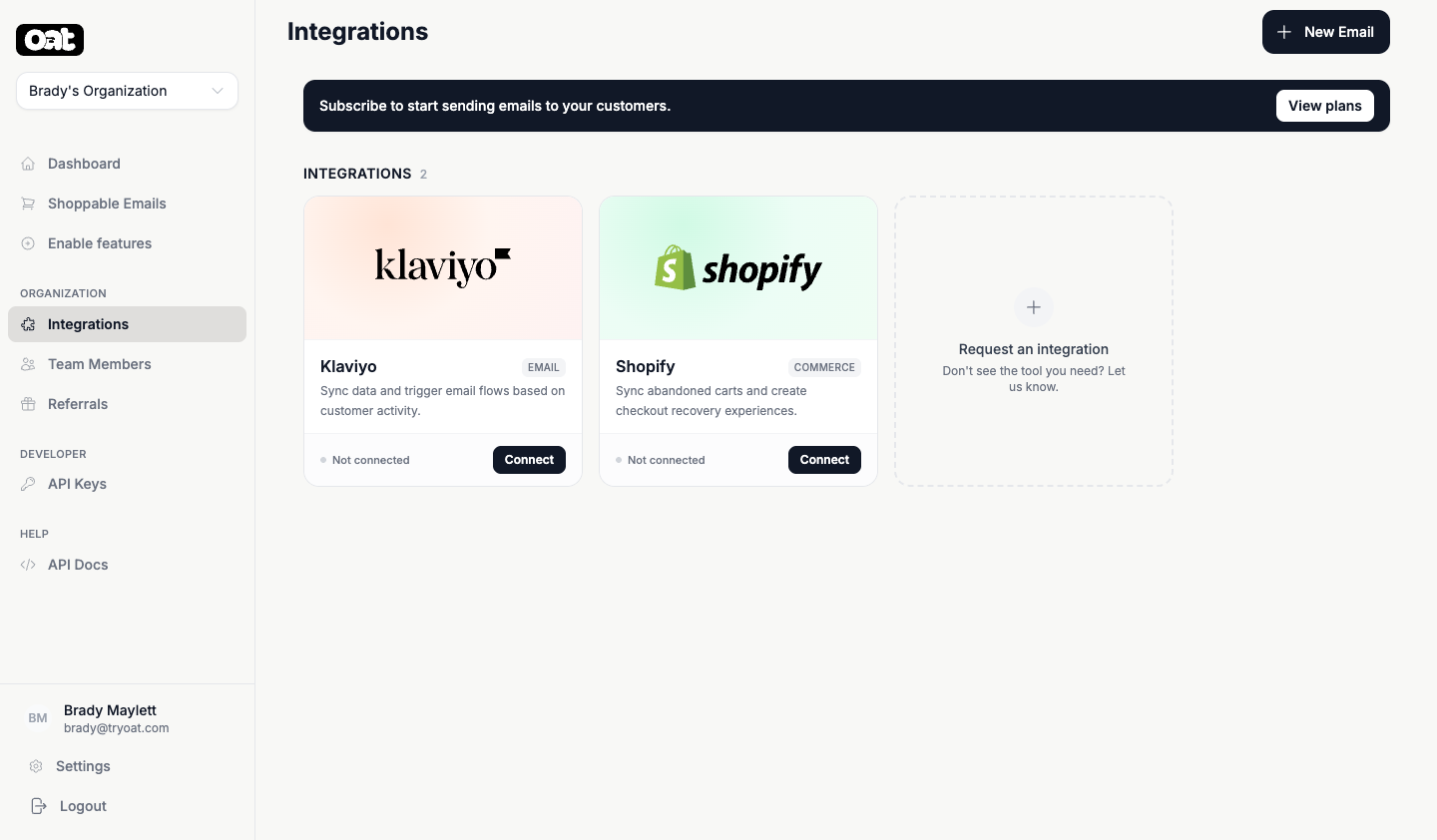
- 1 Open Integrations from the sidebar.
- 2 Click Connect on the Shopify tile and approve the install in Shopify.
- 3 Oat syncs your products in the background — your first email can use live pricing and images right away.
Permissions & reconnecting
Oat asks for the least access it needs for the features you've turned on. If you later enable a feature that needs more (say, subscriptions), Oat will prompt you to reconnect once to grant the extra permission. Your store stays connected the whole time — this is just a one-time permission top-up.
Cart prefill on your storefront
Oat's links can carry a cart back to your store domain and rebuild it on arrival, so a customer picks up exactly where they left off. This runs through a Shopify theme app embed you enable in your theme editor — it's off until you switch it on.
Heads up
Already connected but a setup step still looks undone? You may need to reconnect once to grant a newly required permission — see Permissions & reconnecting above.